Volunteer Scheduling Application
Self-service volunteer scheduling, day-of check-in, and the hours report your board and funders ask for.
Stop chasing volunteers and managing signups. Give your community a simple, self-service schedule they'll actually use — people claim and cancel their own spots, and the schedule keeps itself organized.
On this page
- Overview
- Who it's for
- Features at a glance
- How it works
- Roles
- Locking & cancelling occurrences
- Changing who is on a shift
- Changing or ending an activity
- Volunteer check-in & attendance
- Printable check-in sheets
- Volunteer-hours & capacity reports
- Accountability & history
- Sign-in & registration
- Accessing the live demo
- What's in the demo
- Security
- Configuration & branding
- Getting started
- Hosting & pricing
Overview
If you coordinate volunteers or staff, you know the drain: the back-and-forth email to fill a shift, the spreadsheet only one person can edit, too many people showing up for one task and nobody for another, and a printed roster that gets lost or re-typed. The Volunteer Scheduling Application (VSA) takes that off your plate. It's a web-based schedule where people sign themselves in and out of activities on a shared calendar — from a phone if they like — while VSA quietly prevents over-scheduling and shows each person exactly what their role should see. Volunteers manage only their own people, supervisors see the complete roster, and administrators keep control.
Who it's for
- Churches & ministries — greeters, worship team, nursery, ushers.
- Food banks & nonprofits — recurring shifts and event slots.
- Museums & historical societies — docents and guides across recurring operating days, with the hours a board or grant application asks for.
- Schools & PTAs — parent volunteers for events and classroom help.
- Community & one-time events — coordinating numerous volunteers across single or multiple days.
VSA is not limited to these organizations — it is a flexible application that can accommodate many types of organizations with scheduling needs.
Features at a glance
- Self-service scheduling — volunteers sign up and cancel from any phone, and one account can cover a family or a whole crew.
- Capacity limits & live status — per-activity maximums with live counts and color-coded status, so full shifts and gaps are obvious.
- Role-based privacy — volunteers see only their own sign-ups, and private Jobs/Events stay hidden from unassigned accounts (enforced on the server).
- Delegation, not a lone administrator — add as many Supervisors as you need, each running their own Jobs/Events and deciding who may access them.
- Exception handling — lock a fully-staffed occurrence, or cancel and restore a single date, without touching the recurring plan behind it.
- Call off a shift people already signed up for — cancel an occupied occurrence with a reason emailed to everyone on it, and see who could not be reached.
- Change who is on a shift — take someone off before it starts, or add a walk-in on the day; either way the shift still goes ahead.
- Change a shift without losing its roster — editing an activity shows what it will do and who is standing on it first, and a day that moves takes its people with it.
- Ending a program tells the people on it — deleting a Job/Event or one activity can email every account that loses an upcoming shift, with your reason.
- Flexible recurrence & events — daily, weekday, day-of-week or monthly patterns, open-ended or fixed; dated multi-day events that can return next season.
- Volunteer check-in — record who actually showed up, from a front-desk tablet, a volunteer's own phone, or the roster.
- Printable check-in sheets — printable or CSV rosters for a day or a date range, with check-off boxes and write-in lines.
- Volunteer-hours & impact reports — monthly, quarterly and annual totals by account, program or volunteer: hours scheduled and checked in, and estimated economic value.
- Capacity & fill-rate reports — available slots and hours beside sign-ups, with a fill percentage, so under-subscribed programs stand out for recruiting.
- Automatic shift reminders — an email about a day before each shift, with an add-to-calendar file and a "Can't make it?" link that drops the shift without signing in.
- Bounced addresses are caught — an address the mail provider refuses is flagged, mail to it stops, and administrators get one daily summary.
- Easy sign-in — password and/or passwordless email ("magic link") sign-in, with optional self-registration.
- Security built in — hashed passwords, expiring sessions, rate limiting, and server-side access control over HTTPS.
- No third-party ads — no advertising is ever shown to your volunteers; the page is your organization's, not a billboard.
- Admin audit trail — a tamper-evident record of who deleted something, changed a role, or cancelled an occupied shift; records age out on a retention period you set.
- Deleting doesn't erase your history — removing a Job/Event clears its future occurrences but keeps the past ones, so last quarter still reports correctly.
- Branding & configuration — your name, colors and logo; configurable wording for the "Job" label and each role; adjustable admin actions.
How it works
You organize the schedule two ways, and people sign into the activities inside them:
- A Job is an ongoing area of your program — Kitchen, Greeters, Front Desk — that runs on a recurring rhythm (for example, Serving Breakfast every weekday). (The "Job" label is configurable to fit your world — Department, Ministry, Team, Skill Type, and so on.)
- An Event is a dated happening — an Art Fair, a fundraiser, a concert weekend — with activities on specific days (setup, check-in, teardown), and it can automatically re-appear on next season's calendar.
Either way, each activity has a name, a time, and a limit, and people schedule themselves onto it. Jobs/Events may be private or public: a private one is visible only to accounts assigned to it, while public ones are open to all registered accounts.
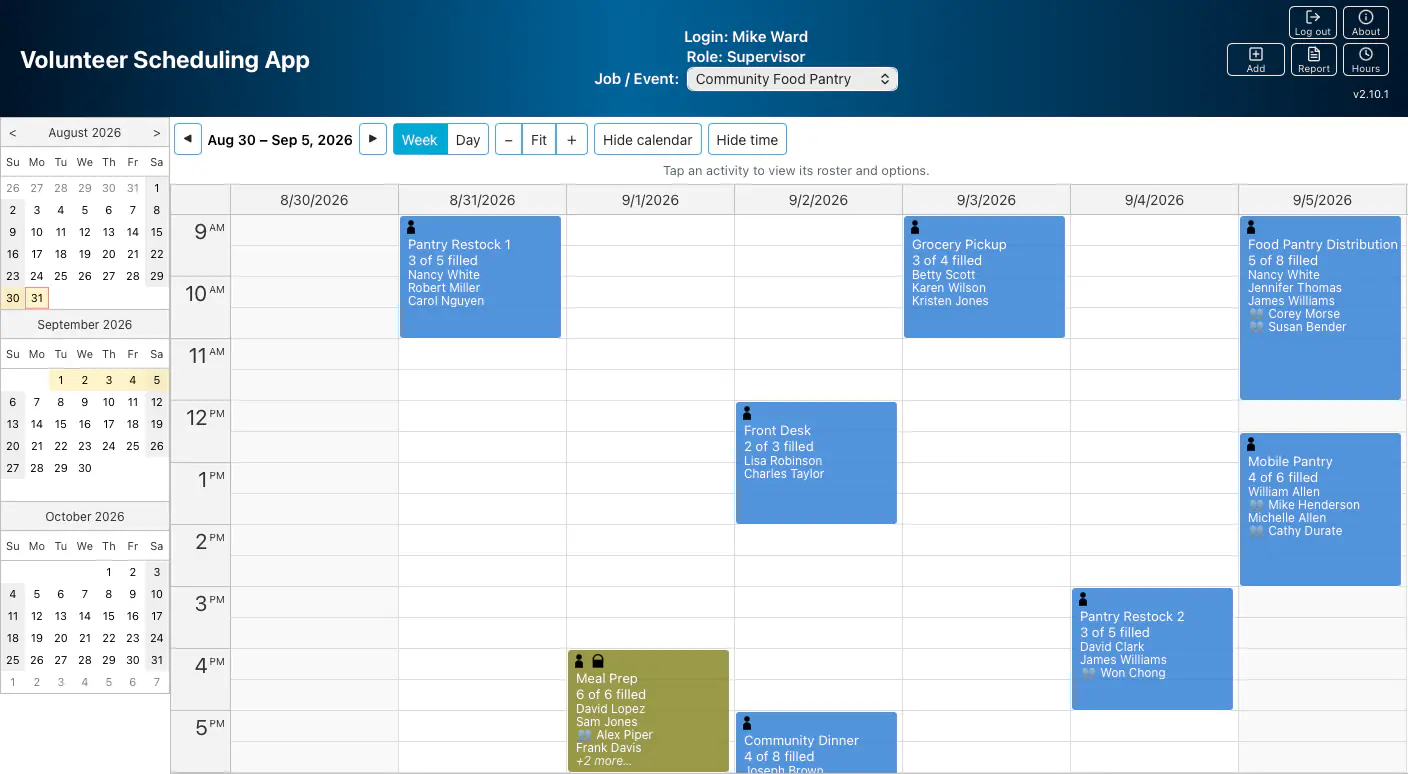
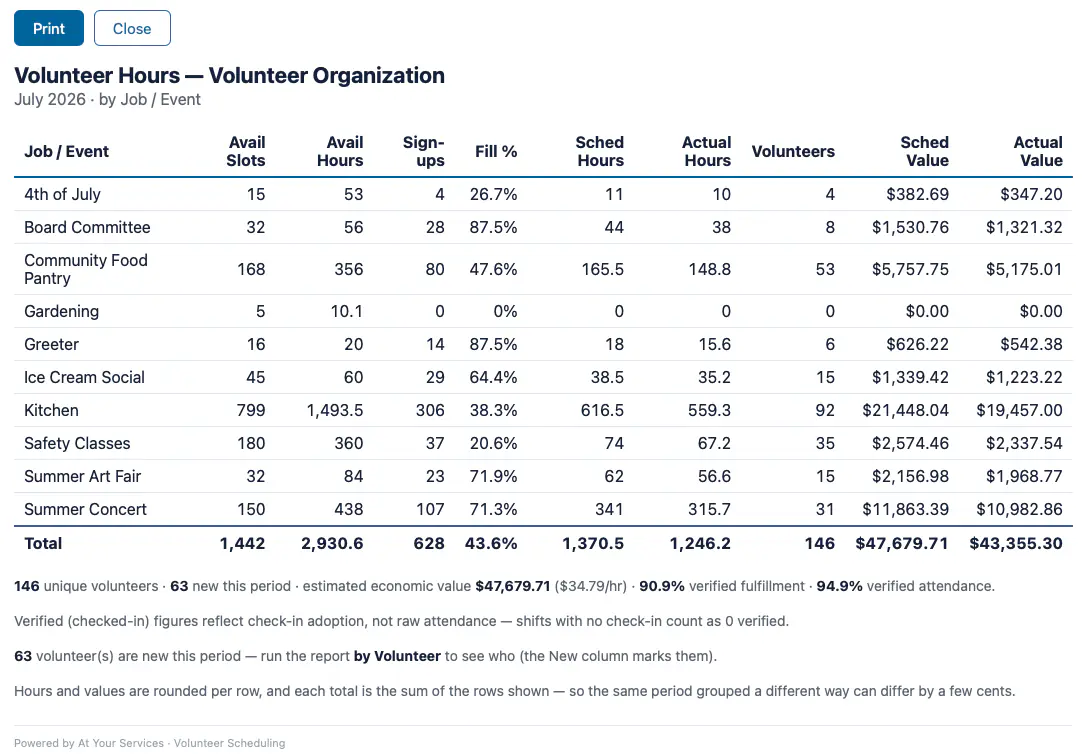
Both screenshots come from the live demo — sample data, not a real organization's. The screens themselves are the real application; you can open the same views and run the same report yourself.
Full scheduling options
When you set up a Job or Event, each activity's schedule is defined once and VSA generates the calendar occurrences from it:
- Recurring activities (Jobs) — repeat daily, on weekdays, on one or more chosen days of the week, or monthly either by a specific date or by a week-number-plus-weekday — a week number (first through fifth) and a weekday, such as the second Tuesday. Each has a start date and either an end date or no end date (open-ended).
- Event activities — you give the Event a name and a start and end date, then attach activities that fall on selected days within that window (each with its own name and start/end time).
- Automatic re-plan (Events) — an Event can be set to reappear on the schedule after 3, 6, or 12 months, so a recurring annual or seasonal event doesn't have to be rebuilt by hand.
The calendar view & color legend
The calendar view shows the logged-in account, its role, and a pulldown to select assigned private and listed public Jobs/Events. A 3-month navigator on the left highlights the selected week; the schedule on the right can be shown as a week grid or a single day, with arrows to step forward and back by day or week and an adjustable row height — and it defaults to the day view on phones. Each activity shows a name, how full it is — “3 of 8 filled”, or “3 signed up” where there is no maximum — the assigned people's names, and status symbols. The first number can exceed the second (“4 of 3 filled”) where staff added someone who turned up on the day. Colors convey status:
- Gray — in the past; cannot be modified.
- Olive — assigned count is at the maximum.
- Blue — assigned count is below the maximum.
- Orange — (Volunteer) your assigned people equal your account's number of associated people.
- Gray, name struck through ("Cancelled") — the occurrence has been cancelled for that day/time and takes no assignments.
Roles
Everyone sees exactly what their role needs — no more, no less: Volunteer (signs up and manages their own spots), Supervisor (oversight & setup), Administrator (full control), and an optional front-desk Check-in Station. What each role is called is your choice — a craft club calls its volunteers Participants, a ministry might say Servers — and the new word appears everywhere the role is shown.
See what each role can do
- Volunteer — the volunteer's own account; schedules the people it's responsible for, and no one else's. A Volunteer:
- views, adds, and removes its associated people on activities;
- when check-in is enabled, checks its own people in and out for a current-day shift right from its phone;
- may hold one or more associated people (a family) or be a group account (a contact/group lead plus members);
- sees and manages only the people associated with the account;
- has a self-service profile panel to edit its contact name and add, rename, or remove its own people. When enabled it can also update its own email (adding one if the account has none) and rename a group account's group name — each independently configurable;
- where email sign-in is available, changing the email sends a verification link to the new address to confirm it;
- chooses its own email: sign-up confirmations (ask each time, always, or never) and, where reminders are automatic, shift reminders on or off. If the mail provider has refused its address, the profile says so beside it, and correcting the address clears it.
- Supervisor — oversight and setup; sees everyone assigned to an activity. A Supervisor does not sign people up — that is the volunteer's own doing — but can take somebody off a shift at their request and add a volunteer who turns up without one. A Supervisor can:
- manage access for the private Jobs/Events it is assigned to — granting or revoking which Volunteer accounts may see and schedule them (configurable);
- create its own Jobs/Events and their activities; a private one it creates is automatically assigned to it, so it can immediately manage that item's access (private and public creation are each independently configurable);
- lock or cancel/restore individual activity occurrences on the private Jobs/Events it is assigned to — and on public ones as well where that reach is widened, the same setting as for changing who is on a shift — including, where you switch it on, one that already has volunteers on it, through the same reason-and-email page an Administrator gets (see below; each is configurable);
- change who is on a shift — remove a person from an occurrence that has not started, or add a day-of walk-in, on the Jobs/Events within its reach (see below; each is configurable);
- record volunteer check-in — mark who actually showed up (or correct a check-in/out time, or swap in a same-account substitute) from the roster on the day — or backfill it from a paper sign-in sheet a day or two later — feeding check-in hours into the reports;
- generate reports — printable or CSV check-in sheets, volunteer-hours & impact totals (scheduled hours beside check-in hours), and by-Job/Event capacity & fill rate (each configurable).
- Administrator — full control over setup and people. An organization can have as many Administrator accounts as it needs, so top-level access (and a backup admin) is never stuck with one person. An Administrator:
- creates and manages accounts of any role, including additional Administrators;
- creates Jobs/Events and their activity plans (the recurring templates that generate the calendar's activities);
- assigns Volunteers and Supervisors to private Jobs/Events;
- adds people to a Volunteer account;
- generates the same reports as a Supervisor — check-in sheets, volunteer-hours & impact totals (scheduled hours beside check-in hours), and by-Job/Event capacity & fill rate (each configurable);
- does not schedule people, but can open the calendar to record check-in, and to lock or cancel/restore individual activity occurrences on any Job/Event, public or private — including one that already has volunteers assigned, with a required reason emailed to all of them (see below; each is configurable);
- changes or ends an activity plan after people have signed up — shown what the change would do and who is standing on it before it happens, with the option to email everyone affected (see below);
- removes a person from a shift that has not started, and adds a day-of walk-in, on any Job/Event;
- sees which accounts' email addresses have bounced — an Email Status column in the account list, filterable to just those, plus one summary email a day when new ones appear — and can clear the mark once a mailbox works again;
- reads the audit trail of who performed the irreversible actions, and can re-verify the whole log on demand.
- Check-in Station — an optional front-desk kiosk account. Signed in once on a shared tablet and left open, it shows only a Job/Event picker and a name box: volunteers check themselves in and out for the day by typing their name. It can do nothing else — it never sees or changes anyone's schedule beyond recording attendance (configurable).
Locking & cancelling occurrences
Control a single activity occurrence on a specific day — lock a fully-staffed shift, or skip one date — without changing the recurring plan behind it.
How locking & cancelling work
- Lock / Unlock — freeze an occurrence so no additional people can be assigned, while everyone already assigned stays (and can still be removed). A padlock marks a locked activity — useful when a shift is already staffed enough.
- Cancel / Restore — make a single occurrence unavailable, for when a regularly scheduled activity should be skipped on a particular day/time. A cancelled occurrence shows gray with its name struck through and takes no assignments, and Restore brings it back. The rest of the recurring schedule is untouched.
- Cancelling a shift that already has people on it — when the weather turns or the venue falls through, an Administrator can call off an occupied occurrence rather than removing everyone by hand. A dedicated page shows the roster first, requires a reason, and flags up front anyone with no email address — so you can decide whether you can reach everybody before you commit. On Proceed the reason is emailed to every assigned account (regardless of their own notification preference — they did not choose this), and the page reports the outcome by name: who was told, whose message failed, and who has no address, each copyable for a phone-call list. Restore works the same way, with its own reason, and notifies the same people. Both are written to the audit trail.
Each capability is independently configurable per role: a Supervisor can lock and/or cancel occurrences on the private Jobs/Events it is assigned to — and on public ones too where you widen that reach, the one setting that governs every occurrence-level action it has — and an Administrator can do so on any Job/Event, public or private. Cancelling an occurrence that has people assigned is an Administrator capability by default, separately configurable and available only where email notifications are switched on — with it off, an occupied occurrence cannot be cancelled at all. A further setting extends it to Supervisors as well, for the Jobs/Events already within their reach, so a club that runs on supervisors rather than a central administrator can call off its own shifts.
Changing who is on a shift
Two things a coordinator deals with constantly and no spreadsheet handles well: somebody drops out beforehand, and somebody turns up who never signed up. Neither is a cancellation — the shift is still going ahead; what changes is who is on it.
Removing a person, and adding a walk-in
- Remove a person — before the shift starts. A volunteer can now do this themselves: the reminder they get about a day ahead carries a "Can't make it?" link that takes them off without signing in, asks before it changes anything, and lets a family choose who is not coming. When a volunteer tells you instead, a Supervisor or Administrator opens Remove person… from the occurrence and takes that one person off; the slot frees up for somebody else. The volunteer is emailed that they have come off the shift — whatever their notification preference, since an opt-out covers reminders, not a change somebody else made to their commitment — and the panel then reports by name whether the message reached them, failed, or the account has no address at all, so you know exactly who still needs a phone call.
- Add someone who came — on the day. A volunteer turns up without having signed up, and the front-desk station cannot find them. Inside the Check-in panel — where staff already are on the day — type a name, pick the person, and they are added and checked in in one act. The Check-in panel opens even on a shift nobody signed up for, so an activity with an empty list can still record the people who turned up. Only people who could have signed up for that Job/Event are offered; somebody with no account at all needs an account first.
Two deliberate limits, both protecting your attendance record. Remove disappears once the shift has started, on purpose: from then on, a volunteer who is signed up and never checked in is the record that they did not come, and deleting them would erase that rather than report it. If someone simply does not turn up, leave them listed and do not check them in. For the same reason the walk-in add will take a shift past its maximum when it was already full — the alternative would be deleting the no-show to make room, destroying the same evidence. A capacity figure over 100% is the application working, and the report says so.
Both are Administrator and Supervisor capabilities, each independently configurable, and both are written to the audit trail. A Supervisor's reach here is deliberately narrower than for check-in: by default it covers the private Jobs/Events assigned to them, and a setting extends it to public ones as well — so where the option is not offered, that capability is simply switched off.
Changing or ending an activity
Programs change. A shift moves an hour later, a monthly meeting shifts to a different Saturday, a class finishes its run. Every one of those reaches shifts volunteers are already holding — so VSA shows an Administrator what the change would do, and who is standing on it, before anything happens.
The review step, keeping a roster through a move, and telling people
- Save shows you the change before it happens. Editing an activity's name, start/end time, maximum, or which days it runs on opens a recap on the same form: how many upcoming shifts would be re-timed, moved, deleted or added, how many sign-ups each of those touches, and which dates are affected. The form locks while the recap is open, so what you confirm is what you were shown — and nothing is written until you confirm it. The recap appears every time, including for a change nobody needs telling about; one that sometimes asks and sometimes does not is harder to trust.
- A day that moves takes its people with it. A Move control relocates an occurrence to its new date with the roster intact — nobody loses their place, and everyone is told the new date. The alternative is not the same thing: unticking one day and ticking another produces the same calendar and the opposite consequence — the first day's shift is deleted with its roster, and the new day is created empty. Both are legitimate and the recap states plainly which one it is about to do, but only one keeps the people, so it is worth knowing the difference before you need it.
- Everyone affected can be emailed, with your reason. The recap arrives set to notify wherever there is something a volunteer would notice, with a required reason that goes out in your words; "do not email anyone" is one dropdown away. The notice says what actually happened to that shift — a re-timed shift is not described as a cancellation — and its calendar attachment updates the entry already in the volunteer's calendar rather than cancelling it. A shift that now starts within the next day or so also carries the "Can't make it?" link, since a new time is exactly when people find they cannot come. Afterwards the page reports by name who was told, whose message failed, and who has no address.
- A change nobody is told about still reaches them. If you choose not to email, or a message fails, a volunteer whose reminder had already gone out gets it again, stating the new time — so nobody turns up at the old one on the strength of an email you never corrected.
- Ending an activity, or a whole program. Deleting an activity plan or its Job/Event opens a page rather than a confirmation dialog, and that page likewise offers to email every account losing an upcoming shift — one message per account listing the shifts it lost, with a calendar attachment that removes them, and a required reason when you send. The two messages are deliberately different: ending a Job/Event says the whole thing is cancelled, while ending one activity names the Job as continuing, because that volunteer may still hold other shifts under it.
Two boundaries worth knowing. An edit applies from tomorrow onward and never changes today — somebody may be working a shift later today and must keep the time they were given. And a maximum change emails nobody, since it appears nowhere in a volunteer's calendar entry; if the new maximum sits below what is already signed up, the recap warns and names those dates rather than removing anybody.
Changing and deleting activity plans are Administrator capabilities, and whether each one offers to email is configurable per deployment — switched on by default, because the alternative is silence. Every change is written to the audit trail.
Volunteer check-in & attendance
Know who actually turned up — not just who signed up. When enabled, volunteers can be checked in and out on the day, and those hours flow straight into the reports.
Three ways to check in, and how the hours are counted
- Front-desk check-in station — a dedicated kiosk account signed in on a shared tablet and left open at the entrance. A volunteer picks the Job/Event and types their own name to check in on arrival and out when they leave. Each button is a simple toggle, so a mistaken tap is undone by tapping again — no supervisor needed to fix it.
- From a volunteer's own phone — a Volunteer checks their own people in and out for a current-day shift, from shortly before it starts.
- Supervisor / Administrator — record or correct check-in and check-out times from the roster on the volunteer's behalf, or swap in a substitute from the same account. Attendance can also be entered after the fact from a paper sign-in sheet for the last few days — so a weekend's shifts can be logged on the next workday, not lost. The same panel carries + Add someone who came, for a volunteer who turned up without having signed up at all.
Check-in records the arrival and the departure (a forgotten check-out defaults to the shift's scheduled end), and the roll-up turns that into Check-in Hours, reported beside the scheduled ones. They are measured from the recorded arrival to the recorded departure, so somebody who came early or stayed late is credited for the time they actually gave — which is also why check-in hours can come out above the scheduled hours for a shift. A stamp landing more than a set margin before the shift is refused however it was made, and a staff-typed time far past the end is refused too, so a mis-keyed hour cannot bank itself as service. Each surface is independently configurable, and the whole capability is off unless enabled.
Printable check-in sheets
When you need a roster in hand on the day, generate it from the live schedule — no separate spreadsheet to maintain, and no re-entry afterward.
Options & outputs
When enabled, a Supervisor can turn the on-screen roster into an offline check-in list — the people assigned to each activity — for signing volunteers in on the day. A setup panel offers:
- Scope — a single day or a custom date range (a range can cover a whole multi-day event).
- Layout — check-off boxes beside each name, or a compact names-only list.
- Blank write-in lines — optionally add empty lines for open slots so walk-ins can be added by hand; for activities with no maximum, you choose how many extra lines to add.
Two outputs are available: a printable sheet (print on paper, or save as PDF from the browser's print dialog) and a CSV download for a spreadsheet. Both note the Job/Event name and the date(s), group the activities by day, and omit cancelled occurrences. Members of a group account are marked 👥 (the same marker used on the calendar) so they are easy to tell apart, and the group name can optionally be shown. The capability is configurable.
Volunteer-hours & capacity reports
Turn the schedule into the numbers grants, boards, and recognition need — computed from a durable record that outlives the calendar's activity retention, so long-range reports stay accurate.
What the reports show
When enabled, a Supervisor or Administrator produces a summary over a month, quarter, year, or custom range, grouped by account, Job/Event, or volunteer:
- Hours & impact — sign-ups, scheduled hours, unique and new volunteers, and estimated economic value (hours × an hourly rate). Where check-in is used, a Check-ins count sits beside sign-ups and Check-in Hours and Check-in Value beside the scheduled figures, and the total line says what share got that far — what percentage of scheduled hours have a check-in, and what percentage of sign-ups do, each shown with the division behind it. It is a record of what was captured, not a show-up rate: a shift nobody remembered to record counts as zero. Group by volunteer and a New column flags each person who first served in the period — so you can see exactly who to welcome, not just how many.
- Capacity & fill rate (by Job/Event) — available slots and hours next to what was filled, with a per-program fill percentage. Programs that offered capacity but drew no sign-ups appear too, so unused capacity is visible for recruiting. A fill percentage can read above 100% where a walk-in was added to a shift that was already full; the report explains that in a footnote — on the printed sheet and in the CSV — whenever it happens.
Both print to a sheet (or PDF) and download as CSV, mark group-account members with 👥, and note when a chosen period only partly overlaps the recorded data. The reports are configurable and off by default.
Accountability & history
Two things a coordinator eventually needs and rarely has: a straight answer to who removed that?, and last season's numbers still intact after somebody tidied up the calendar.
The audit trail, and what happens when you delete something
Audit trail. When enabled, VSA records the handful of administrative actions that cannot be undone or that change what someone is allowed to do: deleting a Job/Event, an activity plan, or an account; changing an activity plan people are signed up for; changing an account's role; creating an account that is already an Administrator; removing the last person from a group account; taking a person off a shift or adding a day-of walk-in; clearing an account's bounced-address mark; and cancelling or restoring a shift that had volunteers on it — recording, where more than one role may do it, which role did. Each record keeps the time, who did it, what it was done to (captured at the time, since the thing itself is usually gone), and how it turned out — including, for a cancellation, the names of everyone who could not be emailed, and, for a walk-in, the resulting roster size against the maximum — so a capacity figure over 100% can still be explained months later.
- Tamper-evident, not just a list. Every record is sealed and chained to the one before it. An Administrator opening the log sees any altered row marked as such, and a Verify whole log button re-checks the entire chain on demand.
- Readable, searchable, no editing. The log is a table like the other admin views, searchable per column. Nothing in the application can edit or selectively delete a record.
- Retention you set. Records age out automatically after a period you choose (in months) — the whole retention policy is that one setting, with no manual purge to forget.
Deleting a Job/Event keeps the past. Removing a Job or Event takes its future occurrences and its recurring plans off the calendar — but the occurrences that already happened stay, and age out later on the ordinary history-retention clock, exactly like any other past activity. That means hours and attendance already earned still report correctly after a program ends. A Supervisor or Administrator can still open the item from an Archived group in the calendar's Job/Event picker to see who was signed up and who checked in; archived items are read-only, invisible to volunteers, and generate nothing new. Once the last past occurrence has aged out, the item is removed for good. The delete page says all of this before you commit — alongside the roster it is about to email — and the deletion itself is recorded in the audit trail.
Sign-in & registration
Joining is deliberately low-friction — where self-registration is enabled, a volunteer signs up with just an email and they're in.
The application supports username/password and/or email-link ("magic link") sign-in; the available methods depend on configuration. "Forgot Password" uses an email link to verify the account and set up a password reset. It can also be configured to let people self-register from the Home page, with the allowed roles controlled by configuration.
Accessing the live demo
There are two ways to sign in to the live demo:
- Register (self-serve, needs your email) — Open the demo and click Register. Enter a name, pick Volunteer (schedule yourself into activities) or Supervisor (see the full roster, read-only), and enter your email. Click the verification link we email you and you're signed in. As a Volunteer, sign up for a shift and answer Yes when asked about emails: you get a confirmation and, about a day before the shift, a reminder with a working "Can't make it?" link — or, for a shift starting sooner than that, the link comes in the confirmation itself. (The demo uses opt-in reminders; an organization can make them automatic.)
Or use a shared demo account — no email needed
Log in with one of the accounts below; the password for all is test:
Betty— Volunteer, the "Bicycle Club" group account: one login covering a whole club. Add several to a shift and watch it fill to its maximum (Blue → Olive). For the Orange state — every person on the account assigned to one activity at once — you need an activity with no maximum, so there is always room for all of them: Greeter's Info Table (Sundays) or Visitor Center - Refreshment Stand (Saturdays).Mike— Supervisor. See the full roster read-only, and note that the private Board Committee Job appears in Mike's pulldown — it's hidden from accounts not assigned to it. Mike can also use Add Job/Event (top-right) to create its own Job or Event with activities. On its own private items (such as Board Committee), click a current or upcoming activity to Lock it against new assignments or Cancel/Restore that occurrence. Use Generate Report (top-right) for a printable or CSV check-in sheet, and Volunteer Hours for hours & impact and by-Job/Event capacity & fill-rate reports (with the check-in columns where volunteers were checked in). Mike can also record check-in from an activity's roster on the day — and, on Board Committee, Remove person… from an upcoming occurrence or + Add someone who came from within the check-in panel. (On the demo those two are limited to Mike's own private Job, which is the default setting; the Administrator can do them anywhere.)Front— Check-in Station. A front-desk kiosk: pick a Job/Event, type a volunteer's name, and check them in or out for the day — the whole account does nothing else. (Also try self check-in fromBetty's phone view on a current-day shift.)- Administrator — not shared publicly; email contact@atyourservices.org for access to see the Administrator role's capabilities (creating accounts, Jobs/Events, and activity plans).
Try things. Sign people up, take them off again, check someone in, or add a Job
or Event of your own as Mike — that's what the demo is here for. Two things to
expect: the demo accounts are shared, so you may find a previous visitor's changes, and activities in
the past show Gray and cannot be modified — that's the app protecting the
attendance record, exactly as it would for a real organization.
What's in the demo
The seeded Jobs & Events to explore
Use the calendar's Job/Event pulldown to explore the seeded content:
- Kitchen (public Job) — daily meal and prep shifts.
- Greeter (public Job) — Sunday greeter and info-table activities, plus a Monthly Bible Distribution on the first Sunday of each month — a monthly recurrence set by week-number-and-weekday rather than a fixed date.
- Summer Concert (public Job) — weekend stage setup, musicians, and equipment teardown on Saturdays and Sundays, running through 26 September 2026 (a Job with a fixed end date — once past, it stops generating and shows the end of its run).
- Community Food Pantry (public Job) — weekly distribution and sorting shifts on set days of the week.
- Gardening (public Job) — a weekly Saturday Clean up. It is the quietest program in the demo, and deliberately so: a Job nobody has signed up for is exactly what the capacity & fill-rate report is for, and it appears as its own row there.
- Museum Docents, Museum Ticket Desk and Museum Gift Shop (public Jobs) — one monthly open house, staffed by three separate crews. Each carries its own Open House – Morning and Open House – Afternoon shifts on the first Saturday of each month. Activity names may repeat across Jobs, and splitting the crews this way is what lets the hours report give each one its own line instead of a single combined total.
- Safety Classes (public Job) — a series of classes on specific weekdays, running through 31 October 2026 (a Job with a fixed end date).
- Fall Book-Sale (public Event) — a weekend sale, September 18–20, 2026: Setup on the Friday, Cashier Table morning and afternoon shifts across Saturday and Sunday, then Teardown. Setup and Teardown have no maximum, so they read “3 signed up” instead of “3 of 8 filled”.
- Fall Fair (public Event) — a three-day event, October 16–18, 2026: Setup on the 16th, then Ticket Booth morning and afternoon shifts on the 17th and 18th. Shows how one dated Event carries different activities on different days of its run.
- Visitor Center - Crew/Tours, Visitor Center- Info Desk and Visitor Center - Refreshment Stand (public Jobs) — one weekly Saturday operating day, split across three crews and running 8am to 5pm: opening crew, guided tours and closing crew; a morning and an afternoon shift on the info desk; and the same two on the refreshment stand, which has no maximum. Splitting the day this way is what lets the hours report give each crew its own line, and it is why the calendar shows one Job at a time — checking a Saturday across all three is three selections.
- Thanksgiving Food Drive (public Event) — a six-day drive, November 20–25, 2026: collection points morning and afternoon across the Friday, Saturday and Sunday, sorting and packing on the Monday and Tuesday, then Turkey Distribution and Teardown on the Wednesday. It is the only Event here that spans a weekend and weekdays, and Turkey Distribution is the largest shift in the demo at 20 people.
- Board Committee (private Job) — visible only to assigned accounts; sign in
as
Miketo see it. Illustrates private-vs-public access.
Two occurrence states are seeded so the colour legend is checkable, both on the Kitchen Job, and both dated ahead so you can page forward to them. Kitchen's Dinner Prep and Serving Dinner are cancelled on 31 October 2026 — gray, name struck through, taking no assignments — and its Lunch Prep and Serving Lunch are locked on 26 November 2026, marked with a padlock: everyone already assigned stays, but nobody else can be added. Kitchen is a public Job, so any account can see both. (Earlier examples sit on 6 September and 17–19 September 2026 if you would rather page back.) These are fixed dates that stay put — the states are permanent, not a passing week. Remember to select Kitchen in the pulldown first: the calendar shows one Job at a time, so the date alone will not find them.
Finished Events move to Archived — and that is worth a look. July's
Summer Art Fair and Ice Cream Social are done, so they have
dropped off the calendar a volunteer sees: an Event retires itself automatically once its last
date has passed. Sign in as Mike and both are still there at the bottom of the
Job/Event pulldown, marked (archived) — read-only, but every roster and check-in
they collected is intact and still counts in the hours reports. It is the same
keep-the-past behavior described under Accountability & history above, which you can
see working rather than take on trust.
Security
Built with layered, industry-standard security. Passwords are never stored in readable form, sign-ins are protected against guessing and abuse, and every action is permission-checked on the server based on your role.
The security measures in detail
- Passwords hashed (never stored in readable form); optional passwordless email sign-in with expiring links.
- Signed-token sessions that expire automatically; protection against session theft (XSS); logout clears cached data.
- Role-based access control enforced server-side; private Jobs/Events visible only to assigned users.
- Rate limiting against brute-force and email-spam abuse; security HTTP headers; input validation and injection guards.
- Information transmitted over HTTPS when deployed behind TLS.
Configuration & branding
Make it your own — brand, terminology, sign-in methods, and scheduling behavior are all configurable per deployment.
What you can configure
- Branding — application name/title, home page, color scheme, logo/symbols.
- Terminology — the "Job" label to fit your organization (Department, Skill Type, Ministry, etc.), and the word for each role: a club can call its volunteers Participants, a school Parent Helpers.
- Sign-in & registration — which methods and which self-registration roles are allowed.
- Password rules — length and required character types.
- Allowed admin actions — add/edit/delete for accounts, Jobs/Events, and activity plans.
- Scheduling window — how many months of past activity history are retained, and how many months ahead planned activities are generated and open for scheduling.
- Reminders — automatic for everyone (each volunteer can switch them off) or only for those who opt in at sign-up; how far ahead they go (a day before each shift, or the evening before at an hour you choose); whether they carry the "Can't make it?" link; and whether administrators get the daily bounced-address summary.
- Audit trail — on or off, and how many months of records to keep.
Getting started
Getting started begins with a conversation — book a quick 15-minute consultation and we'll walk through your organization's needs, gather a short configuration & branding checklist, choose hosting, provision and brand your instance, and hand it off with admin guidance.
Hosting & pricing
Small nonprofits rarely have dedicated IT staff, so we handle setup, hosting, and upkeep. Free hosted options may be available for qualifying small organizations — just ask.
- Software — free. There is no software-license cost.
- Self-hosted — you host and manage it on your own infrastructure, with our onboarding help.
- Managed hosting — we set up and run your instance for you. Costs are pass-through infrastructure only (app hosting, database, and email): typically about $10–40/month for most organizations depending on size and email volume, and up to roughly $60–100/month for larger organizations needing dedicated resources. A one-time setup/installation fee (typically $150–500) is currently waived for nonprofits and early adopters — you cover only the third-party hosting/email costs.
- Open-source licensing — the app is built on open-source components, each under its own license; a complete list is displayed within the application.
Ready to see if it fits your organization? Try the demo, or grab 15 minutes with us.
Try the live demo Book a 15-Minute Consultation Back to At Your Services